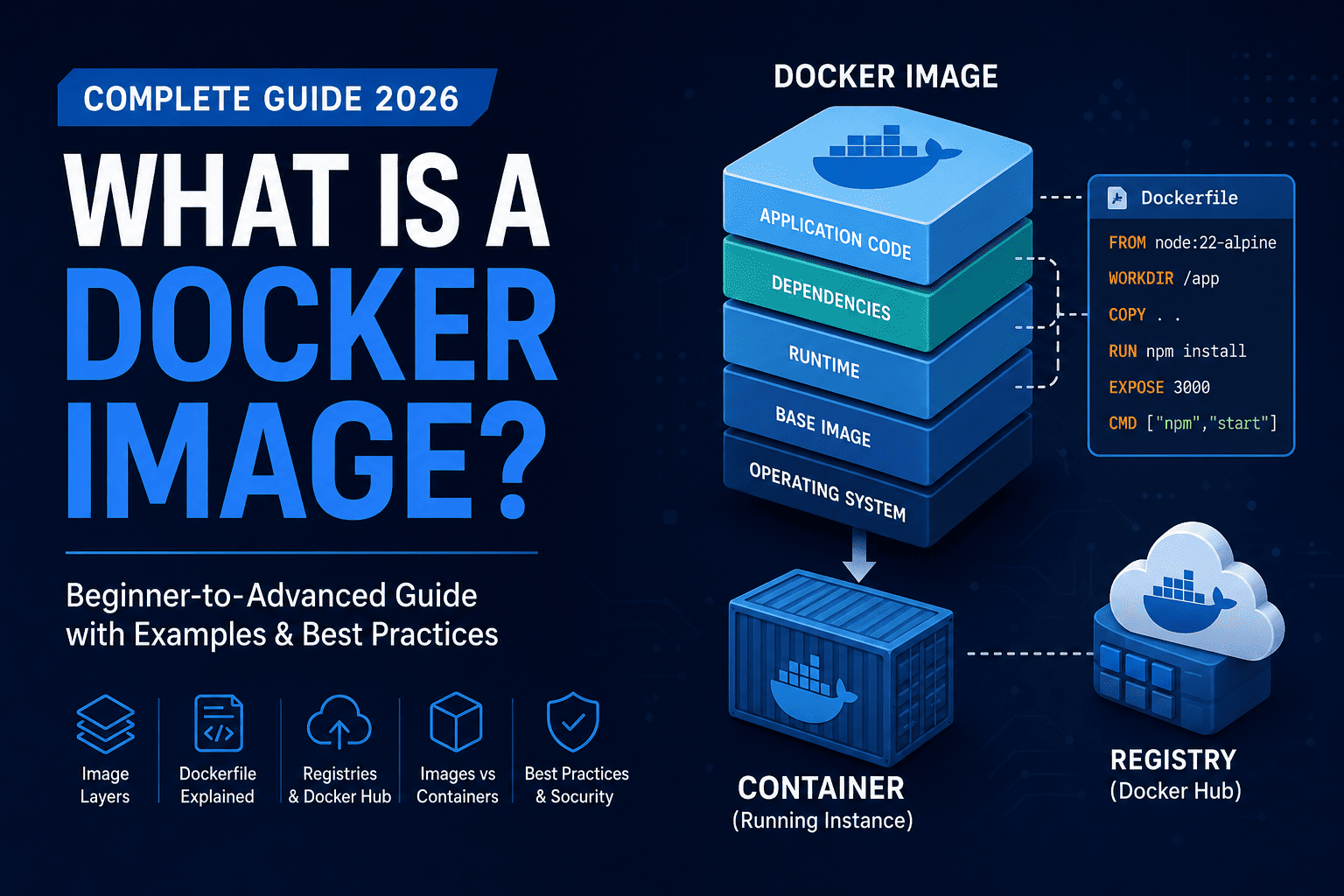
Introduction
Modern software development has changed dramatically over the past decade. Applications are no longer deployed only on physical servers or virtual machines. Instead, developers and organizations increasingly rely on containers to package, distribute, and run applications consistently across different environments. At the heart of this revolution is the Docker image.
Whether you're a software developer, DevOps engineer, cloud architect, system administrator, or simply someone beginning to learn Docker, understanding Docker images is one of the most important concepts you'll encounter. Every container starts from an image, making it the fundamental building block of containerized applications.
This guide explains Docker images from the ground up. Instead of memorizing commands, you'll understand how Docker images actually work, why they exist, how they are built, and how they make application deployment more reliable than traditional methods.
By the end of this guide, you'll understand not only what a Docker image is but also why companies like Netflix, Spotify, Amazon, Google, Microsoft, and thousands of startups rely on Docker images every day to deliver software at scale.
What Is a Docker Image?
A Docker image is a lightweight, immutable, read-only package that contains everything required to run an application. This includes the application's source code, runtime environment, libraries, system dependencies, configuration files, and operating system components needed for execution.
Think of a Docker image as a master template or blueprint. It doesn't actively run anything by itself. Instead, Docker uses this template to create one or more running containers.
When you execute a Docker image, Docker creates a writable container layer on top of the image, allowing the application to run without modifying the original image. This design ensures consistency, portability, and reliability across development, testing, and production environments.
In simple terms:
Docker Image = Blueprint
Docker Container = Running Application
Every Docker container originates from an image. Without an image, Docker cannot create a container.
Why Docker Images Exist
Before Docker became popular, software deployment was notoriously inconsistent.
Developers often heard statements like:
- "It works on my machine."
- "The server has a different version installed."
- "Production behaves differently."
- "The dependency is missing."
- "The operating system version isn't compatible."
These problems occurred because applications depended heavily on their surrounding environment.
For example, imagine a Node.js application that requires:
- Node.js 22
- Express
- PostgreSQL client
- OpenSSL
- Linux libraries
- Environment variables
If even one dependency differed between development and production, unexpected issues could occur.
Docker images solve this problem by packaging the complete runtime environment together with the application. Instead of installing dependencies manually on every server, developers build a Docker image once and run it anywhere Docker is installed.
This approach guarantees that every environment uses the exact same software stack.Understanding Docker Images Through a Real-World Analogy
Imagine building a new apartment complex.
The Blueprint
Before construction begins, architects create detailed blueprints containing every measurement, material specification, electrical layout, plumbing design, and structural requirement.
The blueprint itself isn't a building.
Instead, it provides instructions for constructing identical apartments.
A Docker image works the same way.
It stores every instruction needed to create a running application.
The Apartment
Every apartment constructed from the blueprint represents a Docker container.
Although every apartment shares the same design, each one has its own occupants, furniture, and utilities.
Similarly, every Docker container starts from the same image but maintains its own runtime state.
If one container crashes or changes data, other containers remain unaffected.
Multiple Apartments
One blueprint can create hundreds or even thousands of apartments.
Likewise, a single Docker image can create thousands of containers simultaneously.
This scalability makes Docker ideal for cloud-native applications.
How Docker Images Work
To understand Docker images properly, let's examine what happens when an application is containerized.
Imagine you have a simple Node.js web application.
Your project folder looks like this:
By itself, this project isn't enough to run on another computer.
The destination machine also needs:
- Node.js installed
- npm installed
- Operating system libraries
- Required packages
- Correct permissions
- Runtime configuration
A Docker image bundles all of these components into a single package.
Instead of copying only the source code, Docker packages:
- Base operating system
- Runtime
- Dependencies
- Application source
- Configuration
- Startup command
The resulting image becomes portable.
Whether it's run on Windows, Linux, macOS, AWS, Azure, Google Cloud, or an on-premises server, Docker provides a consistent execution environment.
What's Inside a Docker Image?
A Docker image is more than application code.
It usually contains several important components.
1. Base Image
Every Docker image starts from another image.
Examples include:
- Ubuntu
- Alpine Linux
- Debian
- Node.js
- Python
- Java
- Nginx
For example:
This line tells Docker to begin with the official lightweight Node.js image based on Alpine Linux.
2. Operating System Files
Unlike traditional applications that rely entirely on the host operating system, Docker images include the minimal operating system components required by the application.
This ensures consistency across environments.
3. Runtime Environment
The runtime executes the application.
Examples include:
- Node.js
- Python
- Java Runtime
- .NET Runtime
- PHP
- Go
Without the runtime, application code cannot execute.
4. Libraries
Applications depend on numerous shared libraries.
Examples include:
- OpenSSL
- libc
- zlib
- image processing libraries
- networking libraries
Docker packages compatible versions together.
5. Application Source Code
This includes your project's:
- HTML
- CSS
- JavaScript
- TypeScript
- Python files
- Java classes
- Configuration
- Assets
Everything required by the application is included.
6. Installed Dependencies
Package managers install dependencies during image creation.
Examples include:
Node.js:
Python:
.NET:
Java:
Docker stores these dependencies inside the image.
7. Startup Command
Every Docker image specifies what should execute when a container starts.
Example:
Docker automatically runs this command whenever a new container is created.
Docker Image Architecture Explained
One of Docker's biggest innovations is its layered architecture.
Instead of storing every image as one huge file, Docker divides it into multiple layers.
Consider this Dockerfile:
Docker converts every instruction into its own filesystem layer.
Conceptually, it looks like this:
Each layer builds upon the previous one.
Because layers are immutable, Docker can safely reuse them across multiple images.
Why Layers Are Important
Layering provides several major advantages.
Faster Builds
Suppose you update only one JavaScript file.
Docker doesn't rebuild the entire image.
Instead, it reuses previously cached layers and rebuilds only the layers affected by your changes.
This dramatically reduces build times.
Smaller Storage Usage
Imagine you have twenty applications based on:
Docker downloads the base image only once.
Every application shares that layer.
Instead of consuming gigabytes of duplicate storage, Docker stores shared layers a single time.
Faster Downloads
When pulling updated images, Docker downloads only the layers that changed.
If the base image remains identical, Docker skips downloading it again.
This significantly reduces deployment times.
Immutable Images
One of Docker's defining characteristics is immutability.
An immutable object cannot be modified after creation.
Docker images are immutable.
If you need to:
- update code,
- install new packages,
- change dependencies,
- modify configuration,
you don't edit the existing image.
Instead, you build a brand-new image.
This approach offers several benefits:
- Predictable deployments
- Reliable rollbacks
- Easier debugging
- Version tracking
- Consistent production environments
Immutability is one of the reasons Docker is trusted in enterprise environments.
Docker Image vs Docker Container
These two concepts are often confused by beginners.
Although closely related, they serve different purposes.
| Docker ImageDocker Container | |
| Read-only | Read-write |
| Immutable | Mutable during runtime |
| Blueprint | Running instance |
| Cannot execute by itself | Actively runs applications |
| Created during build | Created from an image |
| Can generate many containers | Exists independently after creation |
A useful analogy is:
- Image = Recipe
- Container = Finished Meal
One recipe can produce thousands of meals.
Likewise, one Docker image can create thousands of running containers.
A Practical Example
Suppose you've built an e-commerce application.
Without Docker, deploying it might involve:
- Installing Linux.
- Installing Node.js.
- Installing npm.
- Installing dependencies.
- Copying source code.
- Configuring environment variables.
- Opening firewall ports.
- Starting the application.
If any step differs between servers, unexpected problems may occur.
With Docker, the workflow becomes much simpler:
- Build the Docker image once.
- Push the image to a registry.
- Pull the same image anywhere.
- Start a container.
Every deployment uses the exact same application, dependencies, runtime, and configuration, eliminating environment-specific inconsistencies.
Introducing the Dockerfile
A Docker image doesn't appear magically—it is built from a Dockerfile.
A Dockerfile is a plain text file containing step-by-step instructions that tell Docker how to assemble an image.
For example:
Each instruction has a specific purpose:
FROMselects the base image.WORKDIRsets the working directory inside the container.COPYtransfers files into the image.RUNexecutes commands while building the image.EXPOSEdocuments the network port the application listens on.CMDdefines the default command that starts the application.
When Docker processes this file, it creates a series of immutable layers, resulting in a portable image that can be shared and executed consistently on any system running Docker.
Building, Storing, Optimizing, and Securing Docker Images
In Part 1, you learned what a Docker image is, how it differs from a container, why images are immutable, and how Docker uses a layered architecture to package applications.
Now it's time to look behind the scenes and understand how Docker actually builds images, where they're stored, how they're distributed, and how experienced developers optimize them for production.
How Docker Builds an Image
When you execute the docker build command, Docker doesn't simply compress your project into a file. Instead, it follows every instruction inside your Dockerfile, executing them one by one to create a series of immutable layers.
For example:
Let's break this command down:
docker buildtells Docker to build an image.-tassigns a human-readable tag.my-node-appis the image name.1.0is the version tag..tells Docker to use the current directory as the build context.
During the build process, Docker sends your project files to the Docker Engine, reads the Dockerfile, executes each instruction, and caches the resulting layers.
If the build completes successfully, the image becomes available locally.
You can verify it using:
Example output:
The image now exists on your machine and is ready to create containers.
Understanding the Build Context
One concept beginners often overlook is the build context.
When you run:
Docker uploads every file inside the specified directory to the Docker Engine.
If your project contains unnecessary files—such as logs, screenshots, videos, or the node_modules directory—they are included in the build context unless explicitly excluded.
Large build contexts slow down builds and increase resource usage.
For example:
Without exclusions, Docker attempts to send everything.
This is why professional developers always use a .dockerignore file.
What Is a .dockerignore File?
A .dockerignore file works similarly to .gitignore.
It tells Docker which files and folders should not be included in the build context.
Example:
Benefits include:
- Faster builds
- Smaller build context
- Reduced image size
- Improved security
- Cleaner deployments
Ignoring unnecessary files is one of the simplest ways to optimize Docker workflows.
Understanding Docker Image Caching
Docker's build cache is one of its biggest performance advantages.
Suppose your Dockerfile looks like this:
Imagine you only modify app.js.
Docker recognizes that:
- The base image hasn't changed.
- The working directory is unchanged.
package.jsonis unchanged.- Dependencies are unchanged.
Instead of reinstalling every package, Docker reuses the cached layers and rebuilds only the layers affected by the updated application code.
This dramatically reduces build time.
However, if you modify package.json, Docker must rerun npm install, because that layer has changed.
Understanding layer order is essential for efficient Dockerfiles.
Best Practices for Dockerfile Layer Ordering
A common beginner mistake is copying the entire application before installing dependencies.
For example:
With this approach, even a small code change invalidates the dependency layer, forcing Docker to reinstall every package.
A much better approach is:
Now Docker reinstalls dependencies only when the package files change.
This seemingly small optimization can reduce build times from several minutes to just a few seconds in larger projects.
Docker Image Tags Explained
Every Docker image has a tag.
A tag identifies a specific version of an image.
Examples:
Think of tags as software versions.
Instead of saying "Install Ubuntu," you can specify "Install Ubuntu 24.04."
Likewise, instead of using an unspecified Node.js image, you can choose an exact version.
Using explicit version tags improves reproducibility and reduces unexpected behavior caused by automatic updates.
What Does latest Really Mean?
Many developers assume latest always refers to the newest Docker image.
This is not always true.
The latest tag simply points to whichever image the publisher has designated as the default.
It does not automatically track the newest release.
For production environments, it's generally better to use explicit version tags such as:
Version pinning ensures consistent deployments and simplifies debugging.
Docker Image IDs
Every Docker image receives a unique identifier.
Example:
Unlike tags, image IDs never change.
Tags can be reassigned, but the underlying image ID always represents the exact image content.
This makes image IDs useful for verifying that different systems are using the same image.
Image Digests
A Docker image digest is a cryptographic hash that uniquely identifies an image.
Example:
Digests provide stronger guarantees than tags because they cannot be altered without changing the image itself.
Many production systems deploy images by digest instead of by tag to ensure the exact expected version is used.
Where Are Docker Images Stored?
After building an image, Docker stores it in a local image cache.
To share images with others or deploy them to servers, you upload them to an image registry.
An image registry functions much like GitHub does for source code—it provides a centralized location for storing and distributing Docker images.
Popular Docker Image Registries
Several registries are widely used in the industry:
- Docker Hub
- GitHub Container Registry (GHCR)
- Amazon Elastic Container Registry (ECR)
- Google Artifact Registry
- Azure Container Registry (ACR)
- Red Hat Quay
- Harbor (self-hosted)
These registries support versioning, access control, vulnerability scanning, and image distribution.
What Is Docker Hub?
Docker Hub is the most widely used public container registry.
It hosts millions of official and community-maintained images.
Instead of building common software from scratch, developers can download ready-to-use images.
Examples include:
This saves significant time and promotes consistency across environments.
Pulling an Image
To download an image from a registry:
Docker checks whether the required layers already exist locally.
If a layer is already available, it isn't downloaded again.
Only missing layers are transferred, making downloads faster and more bandwidth-efficient.
Listing Local Images
To see images stored on your system:
Example:
This command is useful for identifying images you no longer need.
Removing Images
Unused images consume disk space.
To remove a specific image:
To remove dangling images:
To remove all unused images:
Regular cleanup helps maintain efficient development environments.
Sharing Your Own Docker Images
Suppose you've built an application named inventory-api.
You want teammates or deployment servers to use it.
The workflow is straightforward:
- Build the image.
- Tag the image.
- Push it to a registry.
- Pull it wherever needed.
Example:
Others can then download it with:
This enables consistent deployments across development, testing, and production.
Multi-Stage Builds
Modern Dockerfiles often use multi-stage builds to create smaller, more secure images.
The idea is simple:
- Use one stage to compile or build the application.
- Use a second stage to package only the final runtime artifacts.
For example, a Node.js project might install development tools and build assets in the first stage, then copy only the compiled output into a lightweight runtime image.
Benefits include:
- Smaller images
- Faster downloads
- Reduced attack surface
- Fewer unnecessary dependencies
- Improved startup performance
Multi-stage builds are considered a production best practice.
Optimizing Docker Images
Smaller images provide several advantages:
- Faster downloads
- Faster deployments
- Lower bandwidth usage
- Lower storage costs
- Reduced security risks
Professional developers optimize images by:
- Choosing lightweight base images.
- Removing temporary files.
- Installing only required packages.
- Combining related commands where appropriate.
- Excluding unnecessary files with
.dockerignore. - Using multi-stage builds.
- Avoiding duplicate dependencies.
An optimized image improves both developer experience and production efficiency.
Security Best Practices
A Docker image should be treated like any other software artifact—it must be maintained and secured.
Key recommendations include:
- Use official or trusted base images.
- Keep base images updated.
- Avoid embedding secrets such as passwords or API keys.
- Pin dependency versions.
- Remove unnecessary tools and packages.
- Run applications as a non-root user whenever possible.
- Scan images regularly for known vulnerabilities.
- Use minimal base images for production.
Security should be considered from the moment an image is created, not after deployment.
Common Mistakes Beginners Make
Learning Docker is easier when you're aware of common pitfalls.
Frequent mistakes include:
- Using the
latesttag in production. - Copying unnecessary files into images.
- Building excessively large images.
- Storing secrets inside Dockerfiles.
- Ignoring
.dockerignore. - Running containers as the root user.
- Reinstalling dependencies unnecessarily by using poor layer ordering.
- Failing to remove unused images, leading to wasted disk space.
Avoiding these mistakes results in faster, more secure, and more maintainable Docker images.
At this point, you should have a solid understanding of how Docker images are built, versioned, stored, optimized, and distributed. You've also seen why image layering, caching, tagging, and registries play such an important role in modern software development.
Advanced Concepts, Production Workflows, Troubleshooting, FAQs, and Conclusion
By now, you've learned what Docker images are, how they are created, how Docker builds them layer by layer, and how registries make them easy to distribute. In this final section, we'll explore advanced concepts, practical production workflows, troubleshooting techniques, common interview questions, and best practices that every developer should know.
The Docker Image Lifecycle
A Docker image goes through several stages during its lifetime. Understanding this lifecycle helps you manage applications more effectively.
1. Create
The process begins with a Dockerfile that defines how the image should be built.
Docker reads the Dockerfile, executes each instruction, and produces an immutable image.
2. Store
After building, the image is stored locally.
From here, it can be tested or shared.
3. Publish
To make the image available to other developers or deployment servers, upload it to a container registry.
4. Deploy
Production servers download the image and start one or more containers.
5. Update
When the application changes, create a new image rather than modifying the existing one.
Old versions remain available for rollback if necessary.
6. Retire
Images that are no longer required can be removed from local systems or registries to reduce storage costs and keep environments clean.
Docker Images in CI/CD Pipelines
Modern software teams rarely build images manually.
Instead, Continuous Integration and Continuous Deployment (CI/CD) systems automate the process.
A typical pipeline looks like this:
Whenever new code is pushed to the repository, the pipeline automatically builds a fresh Docker image, runs tests, performs security checks, and deploys the application if everything succeeds.
This automation reduces human error and ensures every deployment is based on a reproducible image.
Docker Images in Microservices
Most cloud-native applications are built using a microservices architecture.
Instead of one large application, the system consists of many smaller services.
For example:
Each service has its own Docker image.
This provides several advantages:
- Independent deployments
- Easier scaling
- Technology flexibility
- Simpler maintenance
- Better fault isolation
For instance, the payment service can use Java while the notification service uses Go, and both can coexist because each image contains its own runtime and dependencies.
Choosing the Right Base Image
The base image has a significant impact on image size, security, and performance.
Here are some common options:
| Base ImageBest Use CaseAdvantagesConsiderations | |||
| Alpine Linux | Lightweight production workloads | Very small image size | Some libraries may require additional configuration |
| Debian Slim | General-purpose applications | Good compatibility with many packages | Larger than Alpine |
| Ubuntu | Development environments | Familiar ecosystem and extensive package support | Larger image size |
| Distroless | Security-focused production deployments | Minimal attack surface | Harder to debug due to missing shell utilities |
Choose a base image based on your application's requirements rather than always selecting the smallest option.
Practical Docker Workflow
Imagine you're developing an online bookstore.
Your project structure might look like this:
A typical workflow would be:
- Write or update your code.
- Build the Docker image.
- Run the image as a container.
- Test the application.
- Fix any issues.
- Build a new version.
- Push the image to a registry.
- Deploy it to production.
This repeatable process ensures consistency across every environment.
Inspecting Docker Images
Docker provides several commands for inspecting images.
View local images:
Inspect image metadata:
View image history:
These commands help you understand how an image was built and identify opportunities for optimization.
Troubleshooting Common Docker Image Issues
Build Fails
Possible causes include:
- Syntax errors in the Dockerfile
- Missing files
- Incorrect build context
- Dependency installation failures
Always review the error message carefully, as Docker usually indicates the failing instruction.
Image Is Too Large
Common reasons include:
- Using an oversized base image
- Installing unnecessary packages
- Including build artifacts
- Forgetting to use
.dockerignore - Not using multi-stage builds
Reducing image size improves deployment speed and lowers storage costs.
Container Won't Start
Potential causes include:
- Incorrect
CMDorENTRYPOINT - Missing environment variables
- Incorrect application path
- Missing runtime dependencies
Inspect container logs to identify startup errors.
Port Is Not Accessible
Check that:
- The application is listening on the expected port.
- The container exposes the correct port.
- Port mapping is configured when starting the container.
- Firewall or networking rules are not blocking traffic.
Docker Image Best Practices
Professional teams generally follow these guidelines:
- Use official or trusted base images.
- Keep images as small as practical.
- Pin dependency and base image versions.
- Exclude unnecessary files with
.dockerignore. - Avoid storing secrets inside images.
- Build images automatically using CI/CD.
- Scan images for vulnerabilities.
- Use multi-stage builds for production.
- Tag images using meaningful version numbers.
- Remove unused images regularly.
Following these practices improves maintainability, performance, and security.
Frequently Used Docker Image Commands
| Command | Purpose |
docker build | Build a Docker image |
docker images | List local images |
docker pull | Download an image |
docker push | Upload an image |
docker tag | Assign a new tag to an image |
docker rmi | Remove an image |
docker image inspect | View image metadata |
docker history | Display image layer history |
docker image prune | Remove unused images |
These commands form the foundation of everyday Docker development.
Docker Image Interview Questions
What is a Docker image?
A Docker image is an immutable, read-only template containing everything required to run an application, including its code, runtime, libraries, and dependencies.
What is the difference between a Docker image and a Docker container?
A Docker image is the blueprint, while a Docker container is a running instance created from that blueprint.
Why are Docker images immutable?
Immutability ensures consistency, reproducibility, predictable deployments, and simpler rollbacks. Any change requires building a new image instead of modifying the existing one.
What are Docker image layers?
Each instruction in a Dockerfile creates a filesystem layer. Docker reuses unchanged layers to speed up builds and reduce storage usage.
What is Docker Hub?
Docker Hub is a public container registry that stores and distributes Docker images.
Why should you avoid the latest tag in production?
The latest tag can change over time, making deployments less predictable. Explicit version tags improve reliability and reproducibility.
What is a multi-stage build?
A multi-stage build uses multiple build phases within a single Dockerfile, allowing only the required runtime artifacts to be included in the final image.
Frequently Asked Questions
Can multiple containers use the same Docker image?
Yes. A single Docker image can create any number of independent containers. Each container has its own writable layer while sharing the same underlying immutable image.
Are Docker images operating systems?
No. Docker images typically contain only the minimal operating system components required by an application. They rely on the host operating system's kernel.
Can I modify a Docker image?
Not directly. If changes are needed, update the Dockerfile or application code and build a new image.
Where are Docker images stored?
Images can be stored locally on a developer's machine or remotely in container registries such as Docker Hub, GitHub Container Registry, Amazon ECR, Azure Container Registry, or Google Artifact Registry.
Can Docker images run on Windows, macOS, and Linux?
Yes. Docker provides a consistent runtime across supported platforms, allowing the same image to be used in different environments, subject to platform compatibility.
Key Takeaways
Let's summarize the most important concepts:
- A Docker image is an immutable blueprint for creating containers.
- Every Docker container is created from an image.
- Images package application code, dependencies, runtime, and configuration.
- Docker builds images layer by layer, enabling caching and efficient storage.
- Container registries make images easy to share and deploy.
- Smaller, optimized images improve performance and security.
- Production environments benefit from versioned, reproducible, and immutable images.
- Docker images play a central role in modern DevOps, CI/CD, cloud-native development, and microservices.
Conclusion
Docker images have transformed the way modern applications are built, shared, and deployed. By packaging everything an application needs into a portable, immutable artifact, they eliminate many of the inconsistencies that once made software deployment difficult.
Instead of worrying about missing dependencies, mismatched operating systems, or conflicting library versions, developers can build an image once and run it consistently across laptops, test environments, cloud platforms, and production servers.
Beyond convenience, Docker images support faster development cycles, automated deployments, scalable microservices, and reliable rollbacks. Their layered architecture improves build efficiency, reduces storage consumption, and accelerates image distribution across teams and infrastructure.
Whether you're building a personal project, deploying enterprise software, or designing cloud-native systems, mastering Docker images is a foundational skill. As containerization continues to shape the future of software engineering, understanding how Docker images work will help you build applications that are portable, reproducible, secure, and ready for production.